1. Log in to your cPanel account.
2. In the Databases section, click on MySQL Databases.
![]()
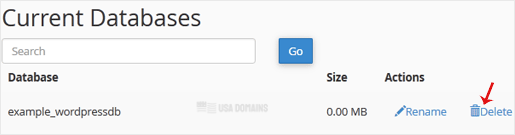
3. Under Current Databases, you can see a list of all your databases. Locate the database you want to remove and click on Delete.
4. Click on Delete Database.

1. Log in to your cPanel account.
2. In the Databases section, click on MySQL Databases.
![]()
3. Under Current Databases, you can see a list of all your databases. Locate the database you want to remove and click on Delete.
4. Click on Delete Database.
1. Log in to your cPanel account.2. In the Databases section, click on MySQL Databases. 3. In the...
1. Log in to your cPanel account. 2. In the Databases section, click on MySQL Databases. 3....
1. Log in to your cPanel account.2. In the Databases section, click on phpMyAdmin.3. From the...
1. Log in to your cPanel account.2. In the Databases section, click on phpMyAdmin. 3. From the...
Since our founding in 1998, USA Domains has provided affordable and reliable web hosting solutions to thousands of satisfied clients around the world. We offer Shared hosting, Email hosting, Optimized WordPress, VPS, and Dedicated server plans for both beginners and professionals alike. With over 27 years of industry experience, we invite you to experience the USA Domains difference!
We proudly accept: